¶ General Configuration
Applicable to playing VRChat via direct connection/Streaming from SteamVR.
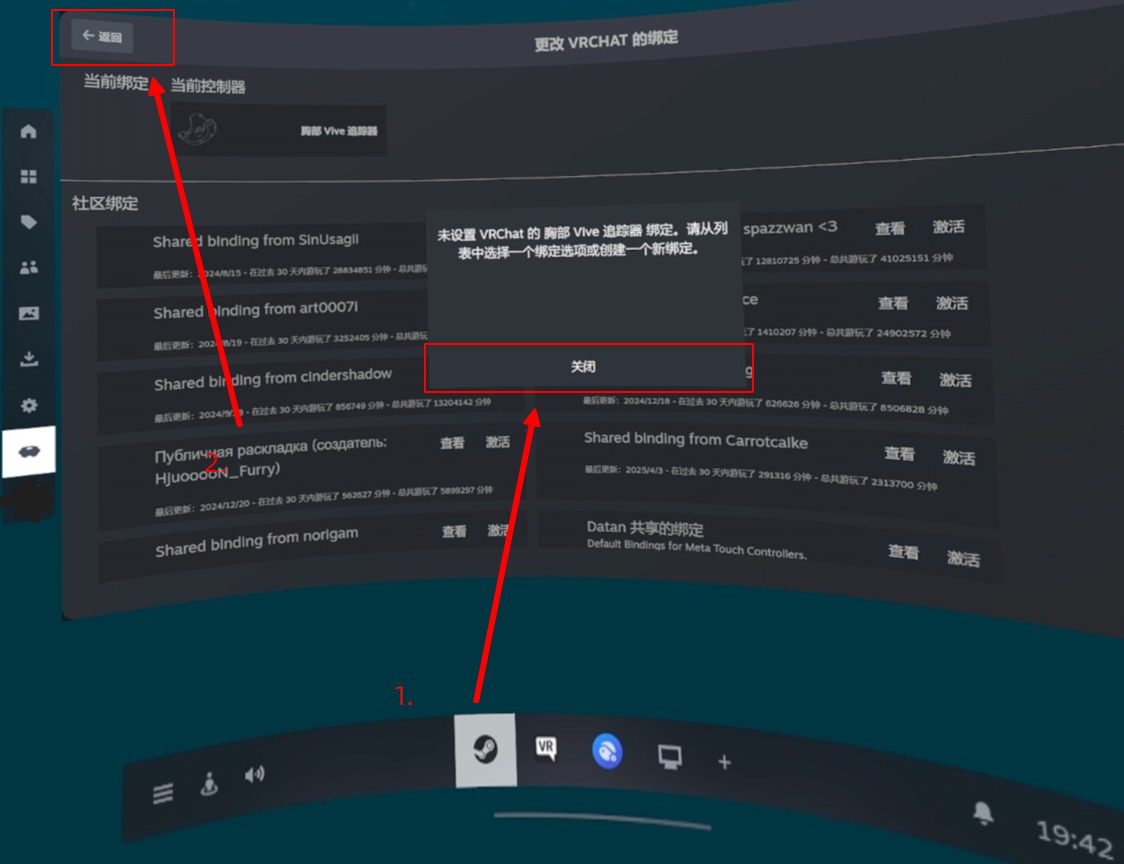
If this page pops up during configuration or daily use, just close it:
¶ Initial Configuration
- Start your SlimeVR application, put on your headset and trackers, then enter VRChat.
- Open the following in the SlimeVR application:
【Settings】-【VRChat Settings Warning】page
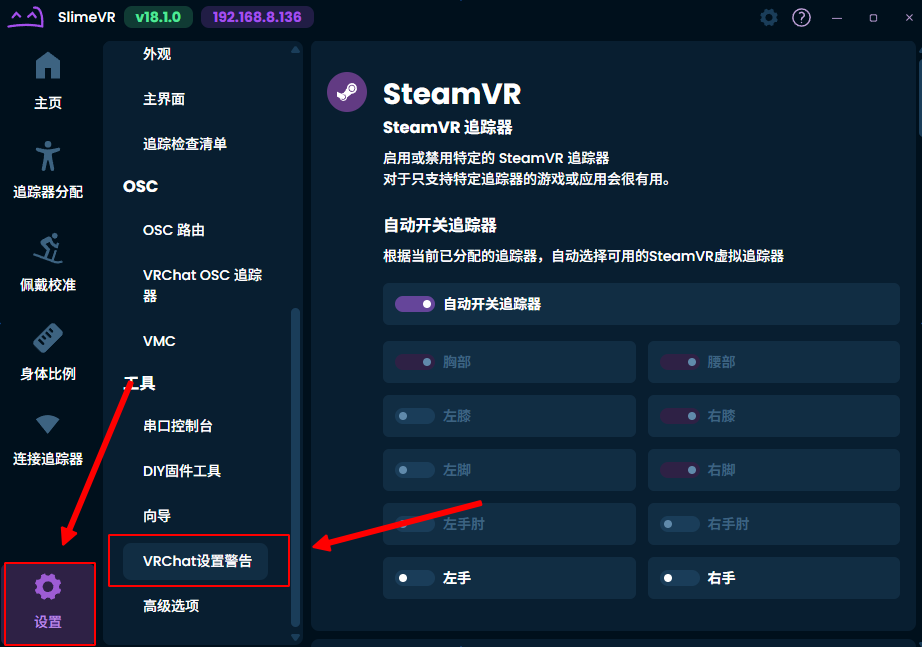
- Note the items with warnings, and modify VRChat settings according to the corresponding items.
- Possible warning items are as follows (please refer to the latest software version):
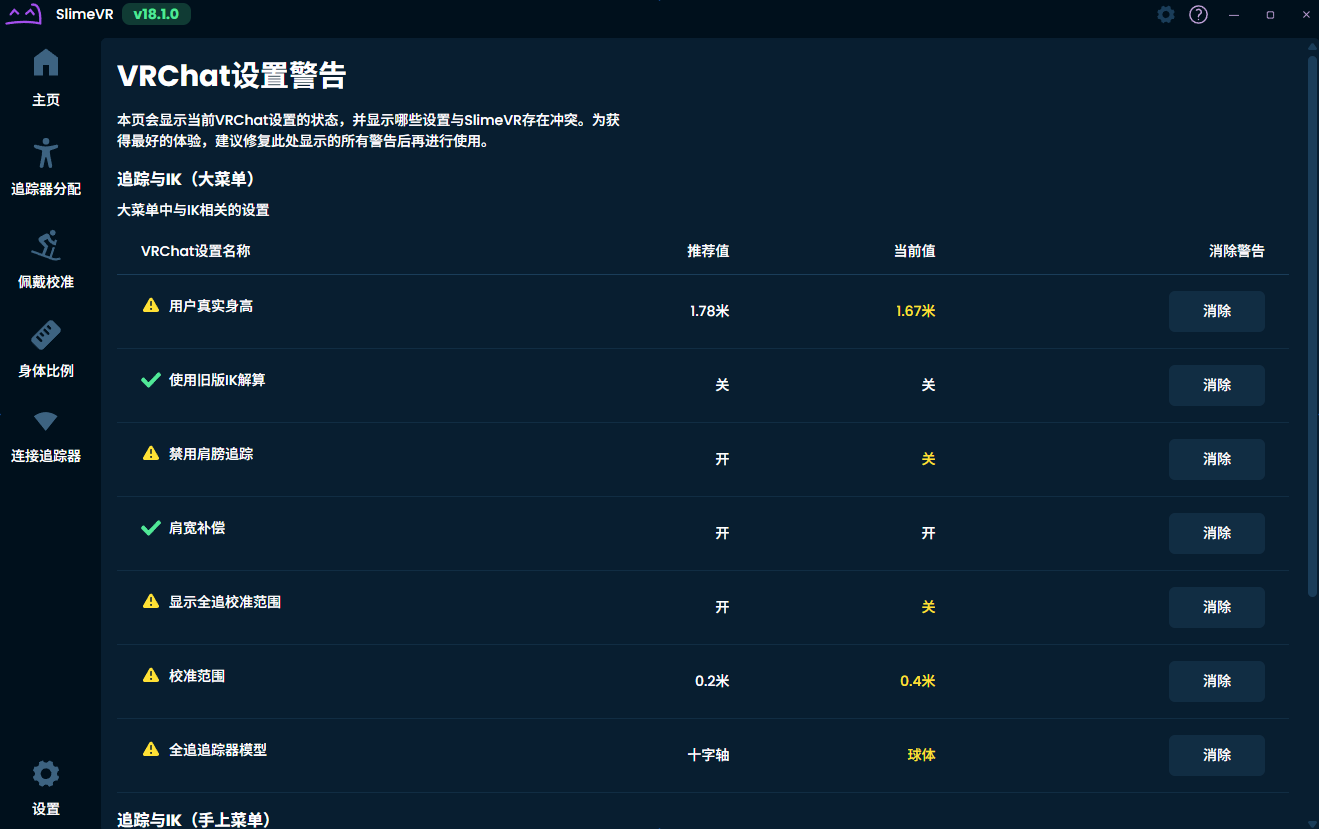
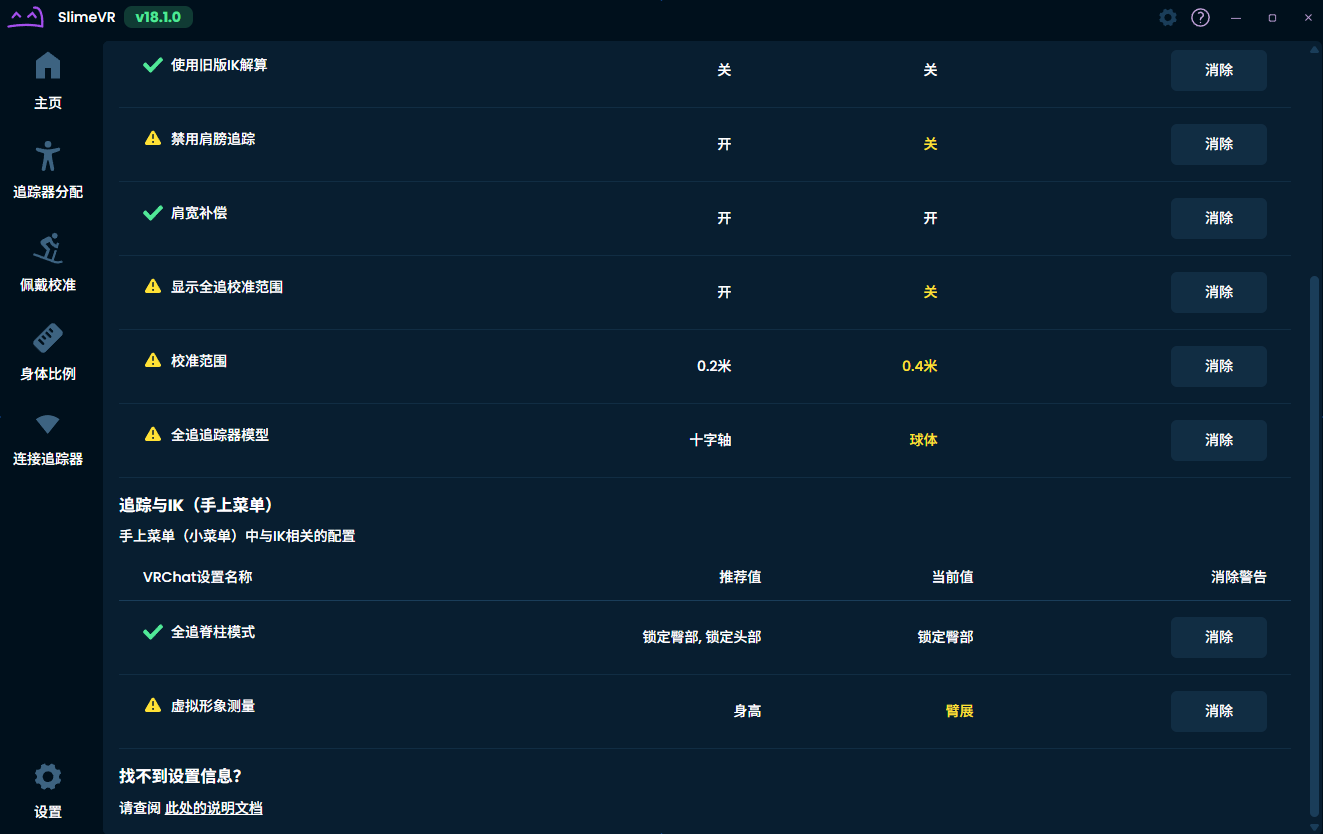
- Steps to modify settings can be found in:
- First enter the big menu, generally you need to configure the following content (software version may change, refer to SlimeVR software prompts):
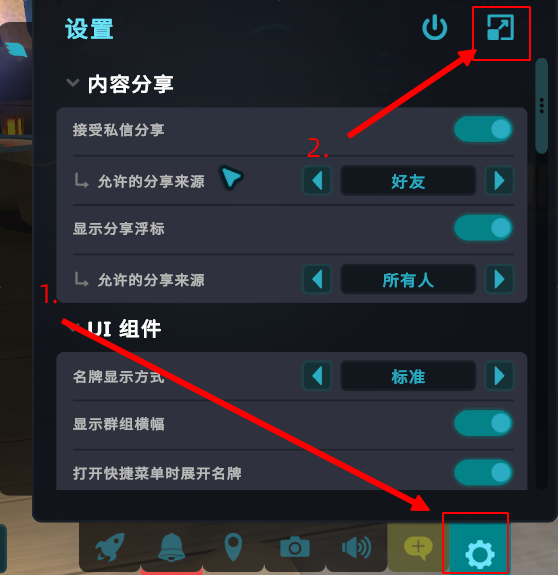
- Settings: Mirror:
- Enter
【Settings】-【Big Menu】-【Mirror】, enableEnable Personal Mirror when calibrating full body:
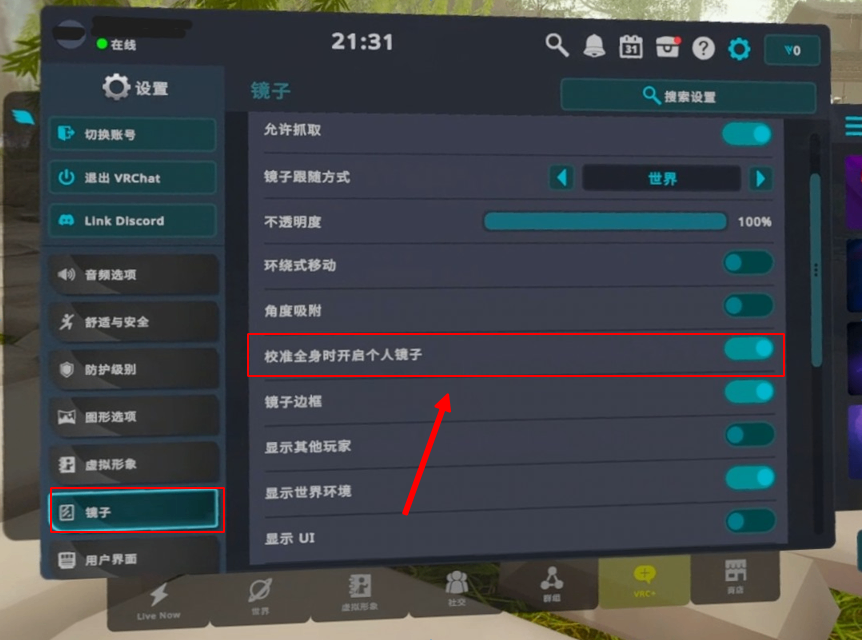
- Enter
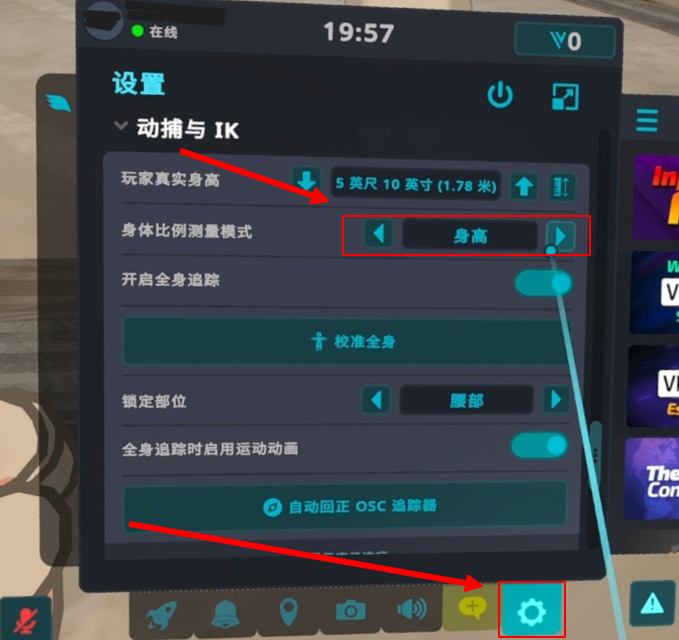
- Scroll down to find: Motion Capture & IK (Big Menu):
-
Enter
【Settings】-【Big Menu】-【Motion Capture & IK】Some options may have different names in VRChat and the SlimeVR app.
- Adjust
Player Real Height(your displayed height in the SlimeVR application, if it differs significantly from your actual height, reconfigure height in the【Body Proportions】page)、enableDisable Shoulder Tracking.
Whenever you adjust the height in the SlimeVR app, you need to update the height data here.
- Optional:
Enable Motion Animation during Full Body Tracking. If primarily playing seated, it is recommended to set toOff.
Enable Motion Animation during Full Body Tracking: Whether the default walking animation will override existing full-body tracking poses when wearing a full-body tracking device. Looks weird when seated.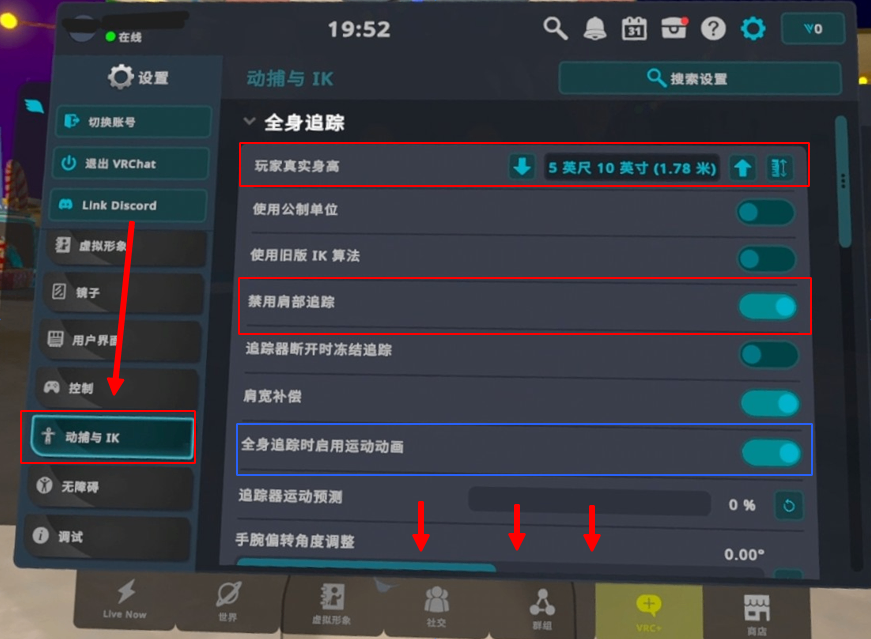
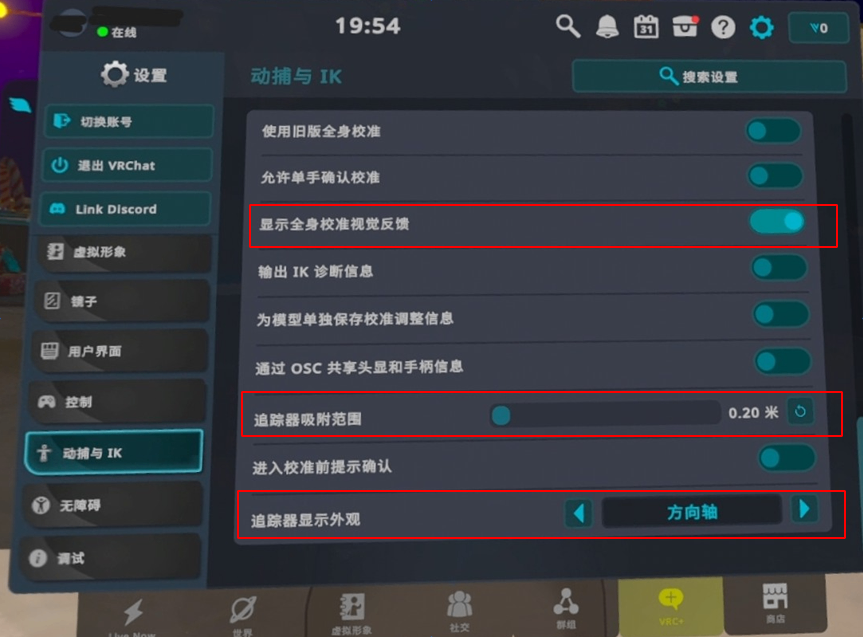
- Scroll down further, enable
Show Full Body Calibration Visual Feedback, setTracker Snap Rangeto0.2m, and setTracker Display AppearancetoDirection Axis.
- Adjust
-
- Motion Capture & IK (Small Menu):
- Close the big menu, reopen the small menu settings, scroll down to find
Body Proportion Measurement ModeinMotion Capture & IK, changeArm SpantoHeight:
- Close the big menu, reopen the small menu settings, scroll down to find
- Congratulations, you have completed the basic configuration for first-time use of VRChat.
- First enter the big menu, generally you need to configure the following content (software version may change, refer to SlimeVR software prompts):
¶ Preparation Before Each Use
This section will guide you on what to do each time you
log in/put on the headset again.
Click the links below to review content about
Drift ResetandMount Calibration.
- Start your SlimeVR application, put on your headset and trackers, then enter VRChat.
- Click
Drift Reset - Full Reset, assume the corresponding (upright) pose, wait for the countdown to end to complete calibration, then clickReset Mount - Body, assume the corresponding (skiing) pose, wait for the countdown to end to complete calibration.
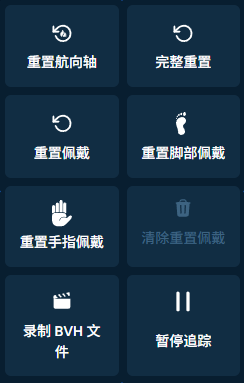
If the tracker's position or direction is not ideal after calibration, you can repeat this step once.
- If you used
8+trackers and assigned trackers to thefoot, after each execution ofMount Calibration - Body, you also need to clickReset Mount - Foot, and stand on your tiptoes, wait for the countdown to end, to calibrate thefootmount direction.
If no tracker is assigned to the
foot, you can skip this step.
- After completing the above steps, as quickly as possible (recommended within
1 minute), open the VRChat menu. Before clicking, keep your legs straight and still, then click Calibrate.
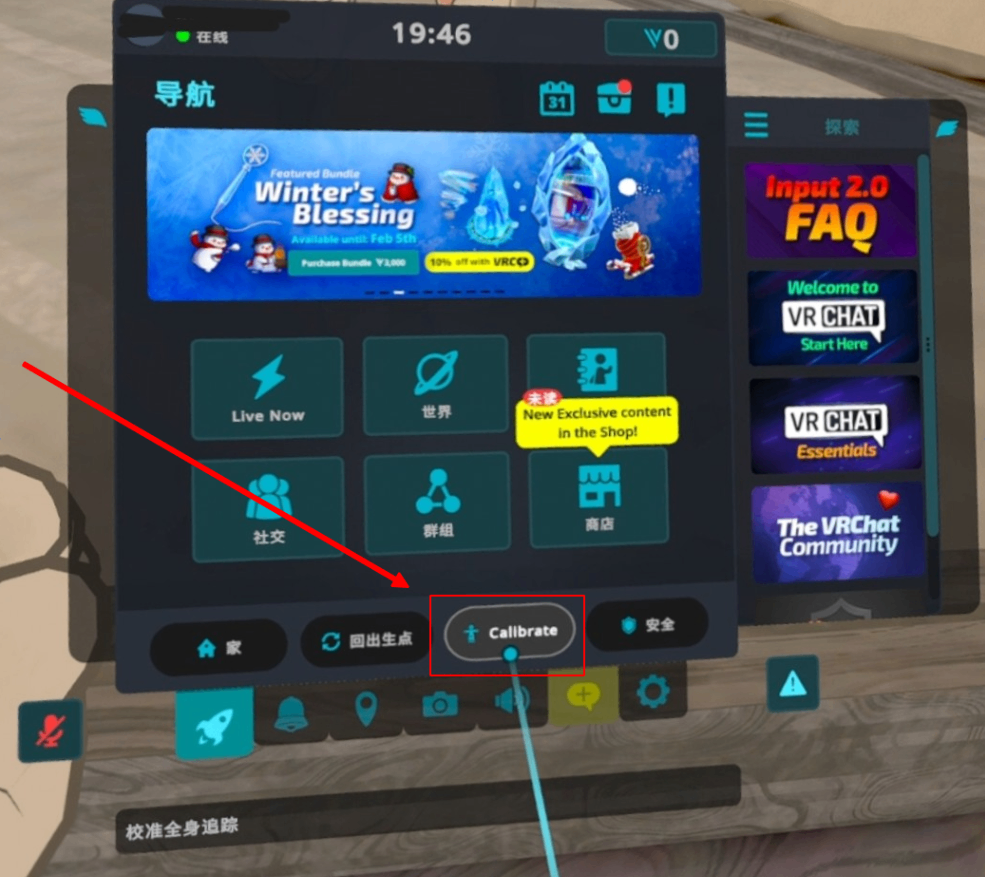
- While in the current state, keep your legs straight and still. Before completing this step, push the controllers forward (to reduce controller tracking loss), then slowly open them outward, extend both arms straight, assume the
T-Posepose, then press thetrigger buttonon both controllers (in gesture tracking mode: pinchthumbandindex finger). This completes the binding of the model with the trackers:Controllers(red boxposition:Direction Axis/Sphere) should as much as possible overlap with the character's hands.Trackers(red circleposition:Direction Axis/Sphere) should as much as possible overlap with the character's corresponding body parts.
Tracker Display Appearanceset toDirection Axisimage reference:
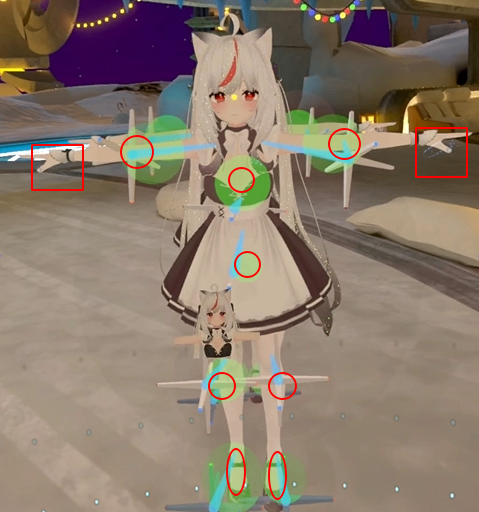
Tracker Display Appearanceset toSphereimage reference:
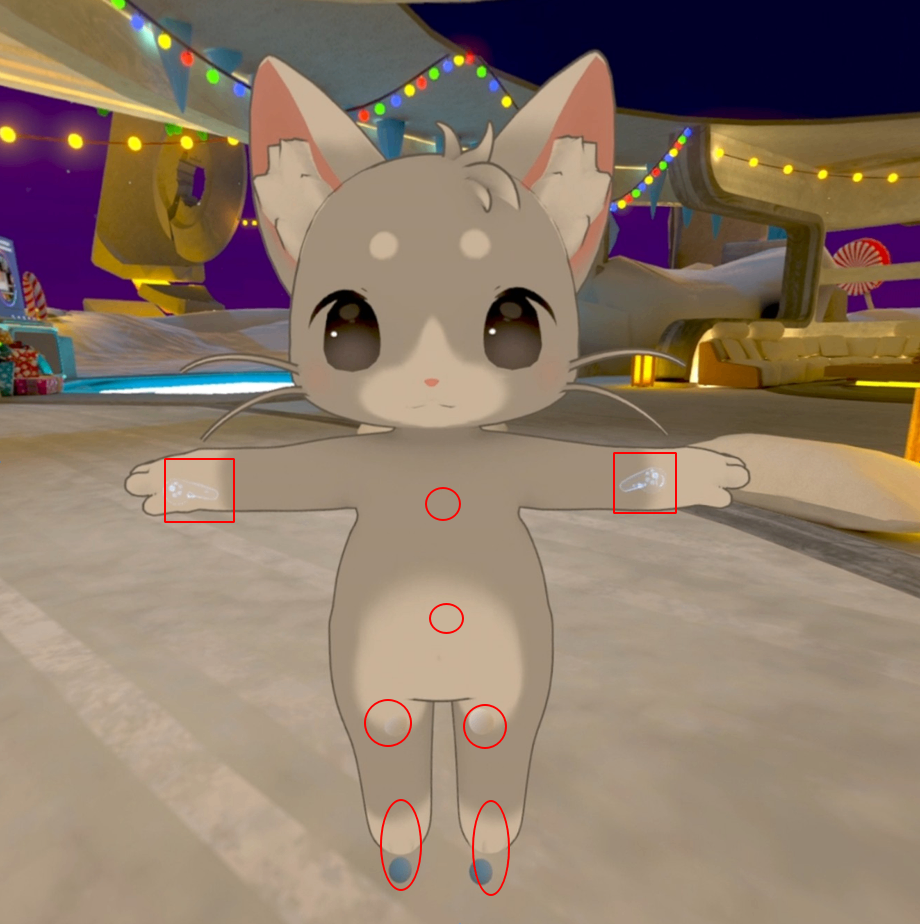
It is normal for the
footandshinareas to only show one tracker, as most SteamVR tracking functions are designed around the HTC VIVE Tracker. Two Slime devices are needed for both areas to simulate a completefootHTC VIVE Tracker.
¶ After Continued Use for a Period of Time
¶ Using Drift Reset Function
- If the tracker has drifted, you can open the SlimeVR application, click
Drift Reset - Full Reset, assume the corresponding pose, wait for the countdown to end to complete calibration. - If after moving for a while, the
leg lifting directionshows obvious deviation after calibration withDrift Reset - Full Reset, it is possible that the tracker has shifted during movement. You may need to re-executeReset Mount - BodyafterDrift Reset - Full Reset.- If a tracker is assigned to the
footand you feel obvious direction deviation when rotating your ankle, you can re-executeReset Mount - FootafterDrift Reset - Full Reset.
- If a tracker is assigned to the
¶ Calibrate Device and Software
Only adjust when tracking performance has significantly changed, or when first receiving the device and performance is not as expected.
- If you feel the device drifts too fast (e.g., less than 10 minutes), you can try calibrating the device:
- If after calibrating the device, it still drifts too fast, then you need to check if the tracker is worn properly?
- For trackers on the
chestandwaist, it is generally more recommended to wear them as close to your body as possible, near the innermost clothing, especially in winter. Avoid wearing them on very thick, fluffy clothes or pants outside.
- For trackers on the
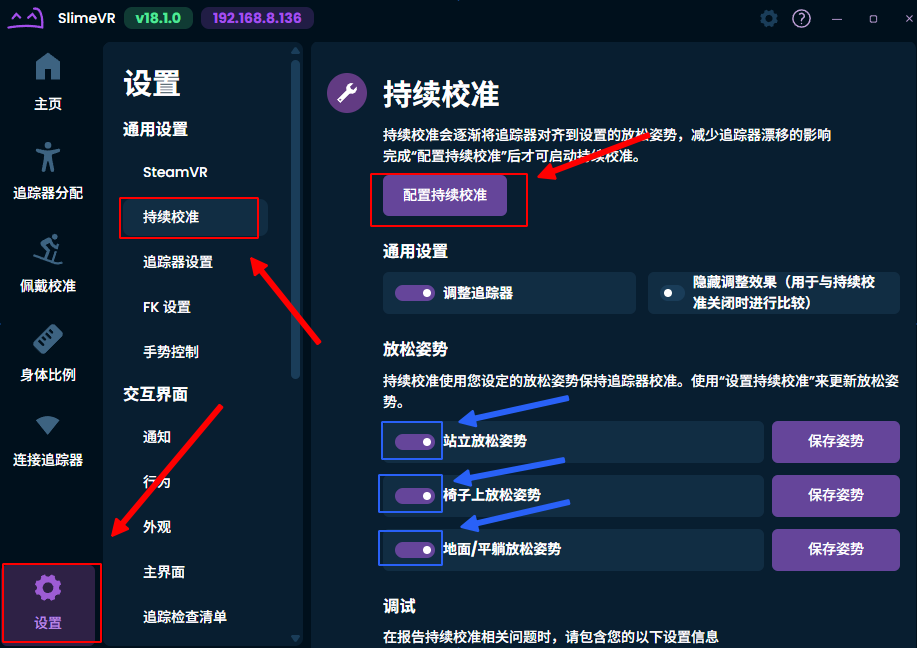
- Think about whether the last
Continuous Calibrationwas configured with the correct pose?- If not, try reconfiguring it in settings, and confirm after assuming the corresponding pose, this is very important.
- If your space is limited and you cannot assume the corresponding pose, skip that pose and do not configure it.
- Or, after configuration is complete, disable unnecessary poses in settings.
¶ Using OSC for Connection
This section uses the example of SlimeVR installed on PC and VRChat on standalone headset.
Applicable to scenarios not using SteamVR, playing through VRChat on the standalone headset.~(Works, but not recommended)~
Since we were unable to successfully install the SlimeVR apk version on the current Quest V74 version, there is currently no tutorial for running both SlimeVR and VRChat on the standalone headset. When installing the SlimeVR application on the standalone headset, you do not need to modify the IP address.
This documentation section was updated in the first half of 2025, some content may be outdated, for reference only.
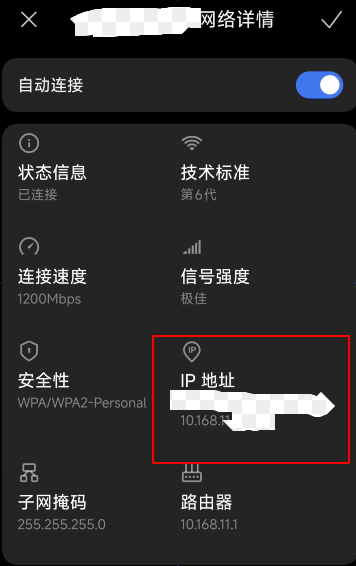
- In the WIFI settings of your VR device, select the WIFI you connected to, view and remember the WIFI IP address information
- Since we were unable to effectively screenshot on the Quest V74 settings page, this example uses phone settings.
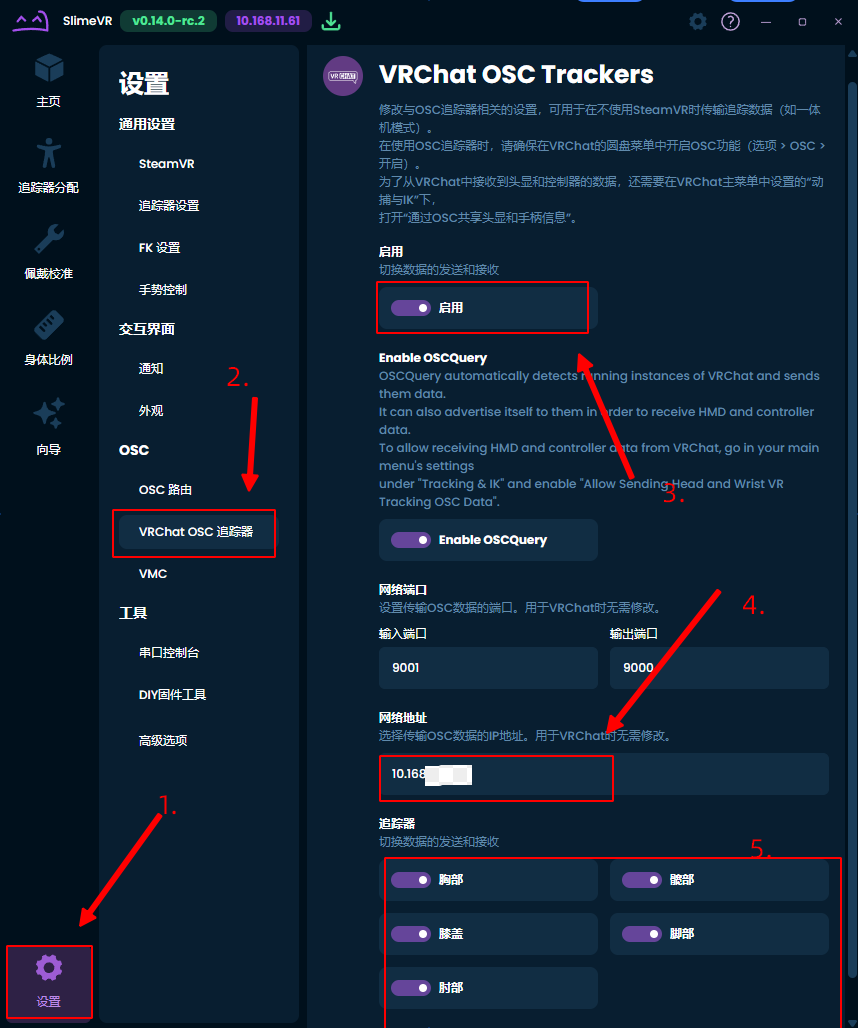
- Enable settings as shown below, modify IP Address to the IP address you just viewed, and start the trackers you need
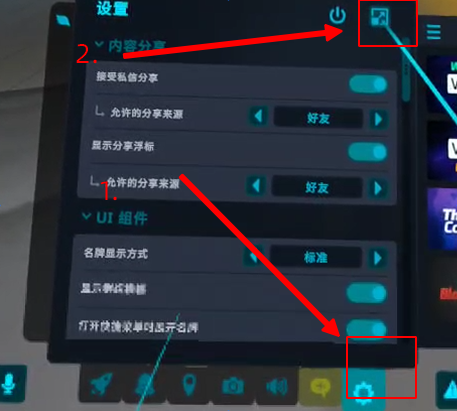
- Open VRChat settings, expand settings
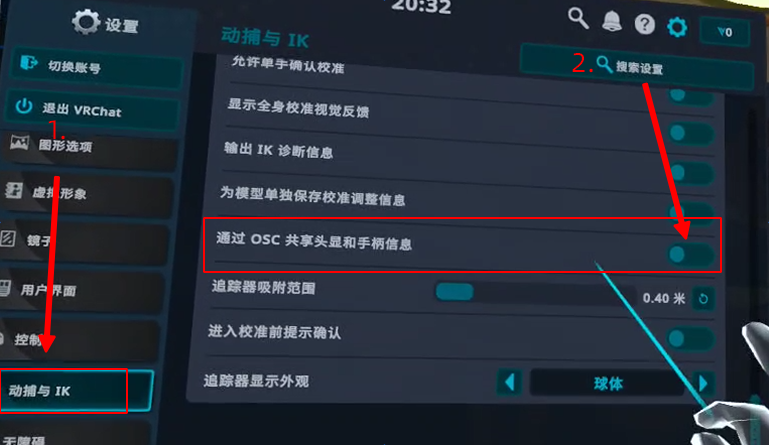
- Select
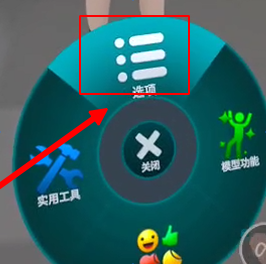
Motion Capture & IK, and open this setting - Close the menu, open the small wheel:
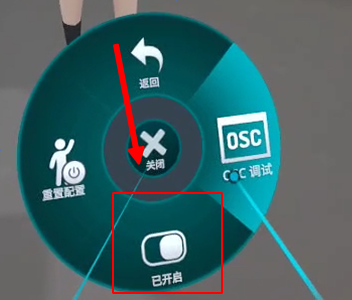
- Set this option to On, which completes the basic OSC connection for trackers
- For subsequent steps, please refer to the above [General Configuration] for configuration.
¶ Other Tips
You can find android-steamlinkvr-release.apk in the following path on your computer: C:\Program Files (x86)\Steam\steamapps\common\SteamVR\drivers\vrlink\resources. This is the VR side installation package for the Steam Link VR application, which can also be used for VR streaming, and supports both Pico and Meta Quest.