¶ Firmware Update (Mini Series)
In some cases, you can get a better user experience by updating firmware.
This is an advanced operation. If your device runs stably and the new firmware has no major updates, upgrading is not recommended!
Do not use: firmware not from StyriaVR official or hardware not from StyriaVR official for firmware updates, otherwise your device may malfunction!
Before updating firmware, you must strictly confirm your: device series, device type (e.g., receiver and tracker) and IMU model. Wrong firmware will cause the device to not work properly. For violations requiring return for repair, you must pay out of pocket!
¶ Checking Version
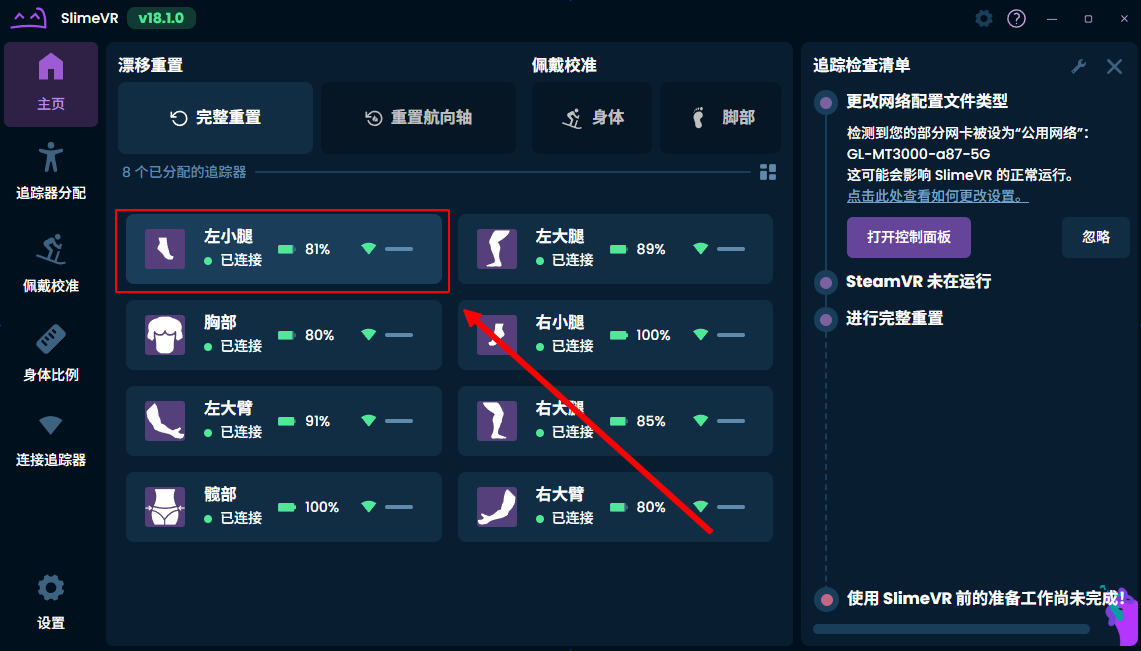
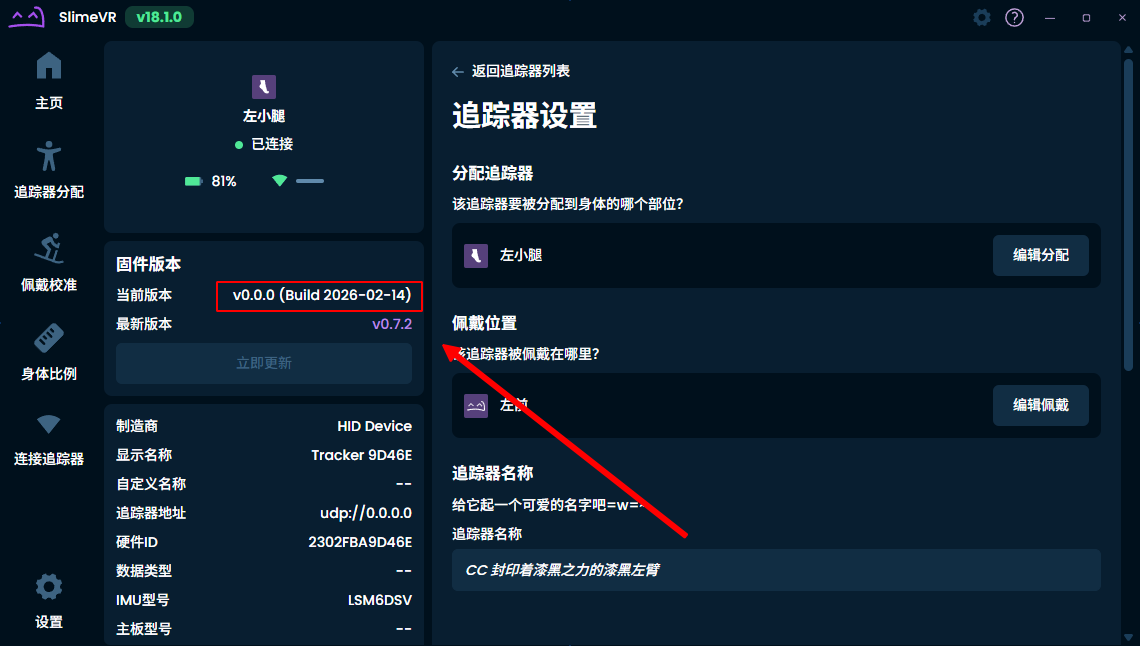
You can check the tracker version here. The firmware version displayed as
v0.0.0in the software interface is normal; the actual firmware version is based on theBuild Date.
¶ Changelog
¶ 【NEW】260513 Version (v1.9.0, Build 2026-05-13):
- Products shipped on
2026/06/01and later are default with this firmware version. - Changelog (major updates):
- Fixed some issues.
- Experimental support for magnetometer function.
- Optimized firmware connection stability.
- When
trackeris powered on and normally connected toreceiver, you can click thereceiverbutton to turn off alltrackers. - After updating to this version, a few seconds after clicking the
receiverbutton, thereceiverindicator will go from bright to dim. Then a shutdown command is sent to alltrackers, and thetrackerindicator will go from bright to dim. - It is currently known that the
260402version has issues: calibration data from the advanced calibration guide cannot be properly compensated. This has been fixed, but considering that calibration data may not be shared between different firmware versions, and firmware is updated frequently, thebasic calibration guideis still recommended. - Special thanks: 寂听(jitingcat)
The magnetometer function is currently an early experimental feature with high requirements for the usage environment. Magnetometer-related support and documentation are not currently provided, and it is not recommended for most environments.
Notes: Updating to this version requires a boot firmware requirement. If your product was purchased before
February 2026, before updating to this firmware version, please first select thexxxxxx_zBootloaderfirmware update bootloader. After all updates are complete, then select this version's firmwarexxxxxx_firmwareto update. After all bootloaders are updated, then update the firmware. Otherwise your device may permanently freeze and need to be returned to factory to re-flash firmware, with round-trip shipping and other costs borne by you.
¶ 260402 Version (v1.8.0, Build 2026-04-02):
- Products shipped on
2026/04/10and later are default with this firmware version. - Changelog (general updates):
- Added support for
LSM6DSV-NRFmodelV2version, existing firmware can be used forLSM6DSV-NRFV1andV2, as well asICM45686-NRF. - It is currently known that the
260407version has issues. If you received this firmware as factory firmware, it is recommended to downgrade to this version. Clear calibration data and calibrate according to the basic calibration guide.
- Added support for
Magnetometer is not yet fully supported. Please do not enable magnetometer function, and magnetometer-related support is not currently provided.
Notes: Updating to this version requires a boot firmware requirement. If your product was purchased before
February 2026, before updating to this firmware version, please first select the260402_zBootloaderfirmware update bootloader. After all updates are complete, then select this version's firmware260402_firmwareto update. After all bootloaders are updated, then update the firmware. Otherwise your device may permanently freeze and need to be returned to factory to re-flash firmware, with round-trip shipping and other costs borne by you.
Notes: This version is the first firmware supporting
LSM6DSV-NRFmodelV2. Firmware below this version will not work onLSM6DSV-NRFmodelV2hardware. You cannot downgrade to earlier versions.
¶ 260301 Version (v1.7.0, Build 2026-03-01):
- Products shipped on
2026/03/15and later are default with this firmware version. - Changelog (major updates):
- Greatly optimized tracking performance for
LSM6DSV-NRFandICM45686. - Used new calibration operation methods and algorithms, after updating please use the new calibration method and recalibrate (calibration required from any version upgrade), see: Mini Series Device Configuration Guide
- Experimentally supported some features, fixed several bugs, improved stability.
- Special thanks: 寂听(jitingcat)
- Greatly optimized tracking performance for
¶ 260214 Version (v1.6.0, Build 2026-02-14):
- Products shipped on
2026/02/25and later are default with this firmware version. - Changelog (major updates):
- Further optimized tracking performance for
LSM6DSV-NRFandICM45686. - Used new calibration operation methods and algorithms, after updating please use the new calibration method and recalibrate, see: Mini Series Device Configuration Guide
- Special thanks: 寂听(jitingcat)
- Further optimized tracking performance for
¶ 260130 Version (v1.5.0, Build 2026-01-30):
- Changelog (major updates):
- Optimized tracking performance for
LSM6DSV-NRFandICM45686. - Used new calibration operation methods and algorithms, after updating please learn the new calibration method and recalibrate, see: Mini Series Device Configuration Guide
- Special thanks: 寂听(jitingcat)
- Optimized tracking performance for
¶ 251219 Version (v1.4.0, Build 2025-12-19):
- Products shipped on
2025/12/25and later are default with this firmware version. - Changelog (major updates):
- Re-enabled motion wake function: will automatically standby after 3 minutes of non-use. Automatic standby has slightly higher power consumption than shutdown (sleep).
- Added some hidden debug features, fixed some issues.
- Fixed sporadic freeze errors.
¶ 251119 Version (v1.3.0, Kernel v0.6.9):
- Products shipped on
2025/11/20and later are default with this firmware version. - Changelog (major updates):
- Fixed abnormal pairing function
- Updated device shutdown time: after 6 hours, device will automatically shut down.
¶ 251026 Version (v1.2.0, Kernel v0.6.9):
- Known issues: After updating from
v1.1.0tov1.2.0, pairing function may be abnormal. After upgrading, please avoid using the pairing function. This issue or solution will be given or fixed in the next version. - Changelog (major updates):
- Fixed jerking issue that may occur during tracking
- Updated device shutdown time: after 1 hour, device will automatically shut down.
- Disabled motion wake: after tracker automatically sleeps due to timeout, tracker motion will no longer be allowed to wake it, to avoid extra power consumption during transport.
¶ 251001 Version (v1.1.0, Kernel v0.6.9) First Batch Release:
- Changelog (major updates):
- Fixed bug of high power consumption during shutdown (sleep).
- The next official candidate version is 260528: updated OTA-related support.
¶ Updating Firmware
Firmware after
v1.4.0is applicable to bothICM45686-NRFandLSM6DSV-NRF.
If your tracker cannot be recognized normally: please use Reset Button to reset the tracker. Or check if the data cable connected to the charging dock supports data transmission. Some low-quality charging cables have data transmission functions cut, only for charging, cannot be used for data transmission. Generally recommended to use the Type-C charging cable that comes with your phone.
Notes: Updating to
2604or higher version firmware requires a boot firmware requirement. If your product was purchased before2026, before updating to this firmware version, please first select thexxxxxx_zBootloaderfirmware update bootloader. After all updates are complete, then select this version's firmwarexxxxxx_firmwareto update. After all bootloaders are updated, then update the firmware. Otherwise your device may permanently freeze and need to be returned to factory to re-flash firmware, with round-trip shipping and other costs borne by you.
Operating system supports Windows 8 [64-bit], Windows 10 [64-bit], Windows 11 [64-bit]
¶ Download Tool
Release Date: 2026/5/31
Firmware Version: 260531, 260531 (Bootloader), 260402, 260402 (Bootloader), 260301, 260214, 260130, 251219
Notes:
260402version is the first firmware supportingLSM6DSV-NRFmodelV2. Firmware below this version will not work onLSM6DSV-NRFmodelV2hardware. You cannot downgrade to earlier versions (mostLSM6DSV-NRFmodels shipped on: April 10, 2026 and later).
¶ How to Connect Device to Computer
¶ Tracker (Tracker)
- Insert the single tracker to be burned into the slot on the charging dock pointed to by the black arrow (this slot has 5 contacts, others have 3).
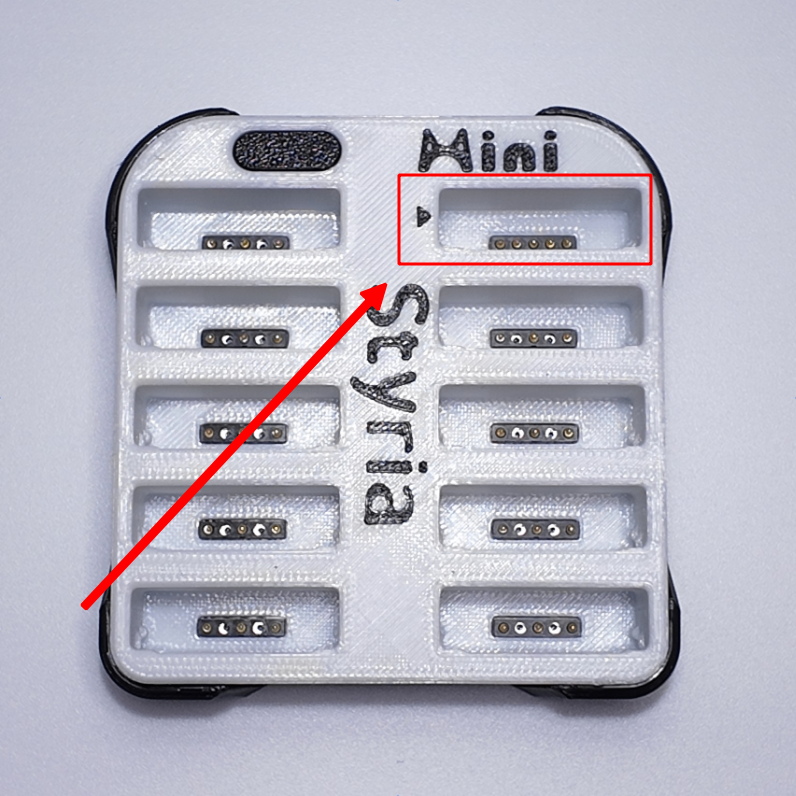
- Connect the charging dock to the computer's USB port via data cable. The red charging indicator and blue status indicator will both light up.
¶ Receiver (Receiver)
- Insert the receiver into the computer's USB port, wait for more than
3 seconds.
¶ Updating Firmware
Devices that have been successfully updated will not be repeatedly updated without changing firmware version options.
If you encounter:
Failed to enter DFUwhen updating tracker, you can try using the reset button. For reset button instructions, see: Tracker - Introduction.
Receiver and tracker need to be updated one by one. Clicking the button will not update all devices at once.
Both receiver and tracker firmware need to be updated, and firmware release dates must be consistent. Otherwise pairing may not work normally, or connection issues may occur.
When updating
tracker, it is recommended to unplug thereceiver; when updatingreceiver, it is recommended to unplug thetracker.
This avoids missingtrackerorreceiverwhen both devices are plugged in simultaneously, causing firmware version inconsistency and inability to work normally.
Please make sure the
trackeris properly inserted, wait for more than2 seconds, then click theStartbutton to update!
Do not touch the
trackerandreceiverduring firmware update! (Can be unplugged after red error appears, no impact)
Do not unplug the
trackerandreceiverduring firmware update process before completion, this may permanently damage your device!
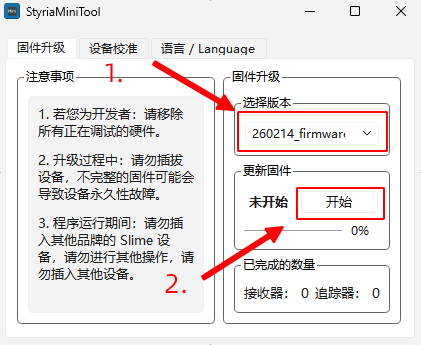
- Unzip the package, double-click
StyriaMiniTool.exeto enter the tool main interface. - Please read the notes carefully, check that everything is correct, then select the firmware version you need to update (default is latest).
- Insert the device you need to update:
receiverortracker, click theStartbutton to update. After completion, the count at the bottom will show completed number, which can be used to check if update was correct.
- Unplug the updated device, place it aside, and insert a new device to update. Repeat this step until all
receiversandtrackersare updated, and thecompleted countmatches your device count. - If tracker cannot be recognized normally after firmware update, you may need to re-pair the
receiverandtracker. Please read: Mini Series Device Configuration Guide - Pairing Receiver - After checking all
trackersandreceiverare paired correctly, please check thefirmware update logagain. For some updates, you may need to recalibrate the device (calibration data for different firmware versions may differ, which may affect tracking performance), or other operations may be required.
¶ Status Description
| Status | Description |
|---|---|
| Not Started | Start button has not been clicked to update. |
| Scanning (Blue) | Scanning all inserted devices. |
| Exit DFU (Orange) | Checking status of all devices. If any device has entered DFU mode, it will be returned to working mode for correct device type recognition. |
| Completed (Green) | Current device has completed update (you should observe the completed count to determine if updated device is correct, especially when multiple different devices are inserted simultaneously) |
| Completed (Pink) | All inserted devices have completed firmware update and do not need updating (if this occurs when multiple devices are inserted simultaneously: some devices have completed update, some devices were not correctly recognized, refer to No Device (Red) status) |
| No Device (Red) | Your device may not be inserted, or was not recognized normally (if tracker is correctly inserted but not recognized: 1. Blow air into corresponding slot to rule out poor contact; 2. Try a Type-C cable with data transmission function) |
| DFU Exit Error (Red) | Firmware may have issues preventing DFU exit. Contact technical support and include the detailed information after the error message colon. |
| Enter DFU Failed (Red) | Device not working properly: you can try the following solutions one by one until normal 1.Press reset button 2.Reinstall battery |
- You can download the firmware version you need here:
It is recommended to download only one firmware type at a time. Check device model and device type again before updating, after update is complete, delete the firmware file for that device type, then download firmware for another device type.
Notes: When updating firmware, both receiver and tracker firmware need to be updated. Otherwise pairing may not work properly.
Wrong firmware update may require paying out of pocket for factory repair!
¶ Downloading Firmware
¶ Tracker (Tracker)
The manual firmware update download list is no longer maintained. If you need to manually update firmware, please refer to
Updating with Tool (Recommended). After downloading the tool, unzip the package and get the newfirmware (UF2)orbootloader (UF2)from the/binfolder.
- 260301 Version (v1.7.0, Build 2026-03-01): styria-tracker-firmware_v1.7.0_260301.uf2
- 260214 Version (v1.6.0, Build 2026-02-14): styria-tracker-firmware_v1.6.0_260214.uf2
- 260130 Version (v1.5.0, Build 2026-01-30): styria-tracker-firmware_v1.5.0_260130.uf2
- 251219 Version (v1.4.0, Build 2025-12-19): styria-tracker_v1.4.0_251219.uf2
- 251119 Version (v1.3.0, Kernel v0.6.9): styria-tracker_v1.3.0_251119.uf2
¶ Receiver (Receiver)
The manual firmware update download list is no longer maintained. If you need to manually update firmware, please refer to
Updating with Tool (Recommended). After downloading the tool, unzip the package and get the newfirmware (UF2)orbootloader (UF2)from the/binfolder.
- 260301 Version (v1.7.0, Build 2026-03-01): styria-receiver-firmware_v1.7.0_260301.uf2
- 260214 Version (v1.6.0, Build 2026-02-14): styria-receiver-firmware_v1.6.0_260214.uf2
- 260130 Version (v1.5.0, Build 2026-01-30): styria-receiver-firmware_v1.5.0_260130.uf2
- 251219 Version (v1.4.0, Build 2025-12-19): styria-receiver_v1.4.0_251219.uf2
- 251119 Version (v1.3.0, Kernel v0.6.9): styria-receiver_v1.3.0_251119.uf2
¶ Firmware Burning
Please check firmware is correct before burning, and ensure that firmware corresponding to different device types has been dragged into them. Wrong firmware may cause the device to not work properly or damage the device.
It is recommended to download only one device type file at a time. After updating, delete the original firmware file, then download the file for another device type to update that device.
¶ Tracker
- Insert the single tracker to be burned into the slot on the charging dock pointed to by the black arrow (this slot has 5 contacts, others have 3).
- Click the button on the charging dock to ensure tracker has started normally (blue light is lit once after pressing button), and contacts well with charging dock.
- Connect the charging dock to the computer's USB port via data cable, wait for more than
3 seconds. - Click charging dock button
6~7 timescontinuously: enter DFU (firmware upgrade) mode. Computer will recognize a new removable disk (for Windows system), named:SLIMENRF - Drag (or copy and paste) the downloaded firmware (file extension is
.uf2, file containstrackerorminiword) into this removable disk. Wait for disk to automatically eject, device to automatically restart, then wait about5 secondsto complete firmware burning.
The
0x800701B1error appearing in Windows system during copy process is a normal phenomenon.
Please do not unplug the device during copy process before it ends, this may damage your device.
- With tracker inserted into charging dock, click the charging dock button (or click tracker button when tracker is removed) to restart device.
- After update is complete, if you need to update other trackers, repeat steps
1 - 6; if you need to update receiver, unplug charging dock from computer to avoid accidentally burning firmware to tracker. - After all trackers are upgraded, please delete the firmware file you just used to avoid using wrong files in subsequent upgrades.
¶ Receiver
- Insert the receiver into the computer's USB port, wait for more than
3 seconds. - Long press receiver button (
10 secondsor more): when entering DFU (firmware upgrade) mode, the receiver'sblue lightandred lightwill stay on. Computer will recognize a new removable disk (for Windows system), named:SLIMENRF - Drag (or copy and paste) the downloaded firmware (file extension is
.uf2, file containsreceiverword) into this removable disk. Wait for disk to automatically eject, device to automatically restart, then wait about5 secondsto complete firmware burning. - Please unplug and reinsert the receiver to restart it.
- After update is complete, if you need to update tracker, unplug receiver from computer to avoid accidentally burning firmware to receiver.
- After receiver is upgraded, please delete the firmware file you just used to avoid using wrong files in subsequent upgrades.
If tracker cannot be recognized normally after firmware update, you may need to re-pair the
receiverandtracker. Please read: Mini Series Device Configuration Guide - Pairing Receiver