¶ Table of Contents
- Tracking Effect Abnormal
Tracker Unresponsive,Stuttering,Cannot Squat, etc. - Hardware Abnormal
Error Display,Cannot Pair,Cannot Charge,Indicator Flashing, etc. - Software Abnormal
Installation Failure,Error Popups,Tracker Not Recognized,Software UI Not Displaying, etc.
¶ Quick Troubleshooting with AI (Experimental)
You can copy the following prompt to an AI, fill in the issue description for quick problem location; experimental, may be unstable.
Special reminder: AI answers are for reference only, not to be taken as authoritative. Misuse may damage your computer or device.
Please do not run any scripts generated by AI. Misuse may damage your computer or device!!
Recommended:
Kimi,Qwen
Use with caution:
Grok,Doubao(some hallucinations or poor results)
Not recommended:
Gemini,DeepSeek,ChatGPT(some hallucinations or poor results)
1. I am using StyriaVR Slime full-body trackers and have encountered an issue, please help me troubleshoot based on the documentation
2. Documentation (Mini Series): https://wiki.styria.cn/en/start/how-to-use-mini
3. Troubleshooting Guide (Mini Series): https://wiki.styria.cn/en/support/troubleshooting-guide-mini
4. Firmware Update Guide (Mini Series): https://wiki.styria.cn/en/support/firmware-update-guide-mini
5. Device Setup Guide (Mini Series): https://wiki.styria.cn/en/start/setup-device-mini
6. All relative paths in the documentation (e.g., `/start/slime-manual-install`) are prefixed with `https://wiki.styria.cn/en/`. If providing links, include the full web path, not relative paths (e.g., `https://wiki.styria.cn/en/start/slime-manual-install`).
7. If no question is provided, ask me for the issue first and don't query documentation; after I provide the issue, query documentation first before answering.
8. If no solution is found directly or indirectly in the documentation, reply with: [Could not find a solution in the documentation, the following is for reference only] as the opening.
9. After answering, provide several most relevant reference links.
10. Keep answers concise, prioritize solutions over verbose explanations.
11. All answers must be based solely on the documentation provided above. Do not introduce any knowledge, experience, or speculation from outside the documentation, to avoid information contamination.

Here is the issue: [Describe your problem in detail here]
¶ Slime Tracking Effect Issues
¶ Tracker shows connected, but shaking tracker has no response
- Your tracker may have gone offline. In the current SlimeVR version, Mini Series still shows as connected in the user interface after disconnecting (if receiver is not unplugged). Please wait for software update.
- Common disconnection reasons include: you manually turned off the tracker, exceeded receiver signal coverage, or tracker battery is depleted.
- Tracker may freeze for unknown reasons after connecting. During use, you should avoid:
bumping,squeezinganddropping, to prevent poor battery wire to motherboard contact. You can try the following solutions one by one until normal:
¶ Intermittent connection, frequent disconnections / obvious stuttering during tracking / signal is very good but tracker still has high latency
- Please make sure you are close to the receiver, with minimal or reduced obstructions between you.
- Please make sure your play area and the room where the receiver is located are the same room, antenna perpendicular to the ground, and minimize obstructions nearby. Avoid plugging tracker into USB hubs, avoid plugging receiver into the back of computer case where it is blocked by the computer host.
- Your computer may have been running too long, try
restarting the computer(please do not use shutdown + startup to replace restart, please use restart). - Please make sure your tracker device has good signal, reference disconnect signal value is
-50dbm ~ -70dbm. Note that this signal value still appears green in the software icon (if you enable developer mode in settings, you can see this data).
¶ Character head height is locked / can turn head but cannot squat
- If you are using
PICOorQuestbrand VR headsets, please exitreclining modeortravel mode.
¶ Tracker rotation direction in VR does not match expectation / foot or leg movement direction is reversed
- Please check if
trackerwearing direction is correct - If no issues, try performing "Mount Calibration - Body (Reset Mount)" or "Mount Calibration - Foot (Reset Foot Mount)", ensure pose is accurate.
- If still no effect, your wearing direction may have issues, you can try rotating the tracker
180 degreesand using it. - Or you can try not using "Mount Calibration", select the corresponding
trackeron the main interface, manually set and try different wearing directions until appropriate. Subsequent use manual settings instead of "Mount Calibration".
¶ Leg movement direction incorrect when lifting leg / kicking direction wrong / bending direction wrong / tracker facing wrong direction
- Your
Mount Calibrationpose is incorrect, when assuming pose: legs arepigeon-toedorduck-footed:- Kicking direction is abnormal, etc.
- Your
Mount Calibrationwaistandchestmovement is not sufficient, bending amount is not enough:- Kicking may be normal, but after sitting, waist will tilt sideways.
- Kicking and sitting are normal, but when leaning back, model deforms, etc.
- Did not follow the standard:
Drift Reset - Full Reset,Mount Calibration - Reset Mount,Mount Calibration - Reset Foot Mountprocess, did not properly prepare before each tracker use. - We recommend you carefully re-read: User Guide - Feature Explanation.
¶ Tracker and headset have overall serious offset of more than half a meter
- You may have had operational issues when adjusting tracker allocation, did not assign
VR headsettohead, or canceled the default assignment. Please check head allocation status in SlimeVR software after VR device is turned on and connected to SteamVR (if software hasVR headsetdevice). - May have encountered some special bugs, try closing the software and
restarting the computer.
¶ Some joints are locked and cannot move
- Please check if all tracker allocations are correct, whether they are assigned to correct body parts, whether they share the same body part with other devices causing conflicts. Or you can try re-allocating trackers.
- Try closing the software and
restarting the computer.
¶ Tracker is not moving, but character body part is rotating
- Please check if in VR device turned on and connected to SteamVR, you assigned controllers or other hand positions to other locations. Please re-allocate all
trackers/controllers/VR headset.
¶ Tracker drifts too fast, posture quickly becomes distorted
- You can try recalibrating the device: Device Configuration Guide - Gyroscope Calibration
¶ Tracker indicator flashes frequently / tracker device has no response when turned on / tracker suddenly disconnects and cannot reconnect
- Your device may be out of battery, try charging for at least
0.5 hours.
¶ Slime Hardware Issues
¶ Tracker shows error / some paired tracker devices not showing
- Your computer may have been running too long, try
restarting the computer(please do not use shutdown + startup to replace restart, please use restart). - Tracker may freeze for unknown reasons after connecting. During use, you should avoid:
bumping,squeezinganddropping, to prevent poor battery wire to motherboard contact. You can try the following solutions one by one until normal:
¶ Tracker cannot pair / cannot update firmware
- If
trackerandreceiverfirmware versions are inconsistent, pairing will not work, see: Firmware Update Guide. - Tracker may freeze for unknown reasons after connecting. During use, you should avoid:
bumping,squeezinganddropping, to prevent poor battery wire to motherboard contact. You can try the following solutions one by one until normal:
¶ Tracker device cannot start normally
- May be out of battery, try using a charger that meets charging requirements (5V / 1A) to fully charge the device.
- If the above attempt is ineffective, contact technical support.
¶ Cannot charge normally after connecting device with compliant charger
- When using charging dock, insert tracker in the correct direction, do not insert backwards. Backwards insertion may affect device operation or may damage the device.
- If you have other questions, please contact technical support.
¶ Device not working normally / charging dock cannot fully charge all trackers / tracker cannot charge normally
- Please make sure your device is inserted into
charging dockin the correct direction, has been plugged in tightly, and try gently pressing thetracker. - Please check if
trackeris inserted backwards,trackerhas insertion direction requirements. Correct insertion should not require excessive force. Charging dockmay have accumulated dust over long periods causing poor contact. You can try blowing air into charging dock contacts, or wiping dust off contacts with cotton swab.
¶ Remaining battery of trackers running for the same time is inconsistent / tracker does not show specific battery level
- This type of Slime tracker does not have the ability to detect absolutely accurate battery level. Battery is only a reference for use, actual runtime should be used as the standard.
- Battery percentage may be affected by software bugs, network environment, etc. Sometimes display may have delay, errors or cannot display. If battery life is normal, no need to worry.
- If individual tracker actual runtime is significantly shorter than other trackers, and remains short even after being fully charged separately, contact technical support.
- If actual runtime difference between devices is less than
30%, this may be normal, no need to worry excessively.
¶ Indicator flashes frequently, cannot use tracking function normally
- Please read Mini Series User Guide - Indicator to find the status corresponding to your device.
- If you just updated firmware, in some cases you may need to re-pair
receiverandtracker. Please read: Mini Series Device Configuration Guide - Pairing Receiver - If indicator status is not in the list, or is in corresponding mode but cannot use related functions normally, please contact technical support and provide indicator status related video.
¶ Tracker device cannot power off normally by long-pressing button
- When powering off via
function button, pressing duration should not be too long, otherwisetrackerwill turn on again. - For other situations, please contact technical support. To handle your issue efficiently, you need to provide: product type or model, product purchase date, whether firmware has been upgraded.
¶ SlimeVR and SteamVR Software Issues
¶ Software installation progress bar stuck
- Due to download server location issues, if download cannot complete normally, please cancel. Then follow Manual Installation Guide to install the application.
¶ Software shows error popup below / opens and stays on Connecting Server page / software cannot open / never gonna let you down / Panicking situation / Couldn't spawn the main Java binary: Error
Notes: If your project or game depends on a specific version of JDK / JRE, please check whether this operation may cause impact before proceeding.
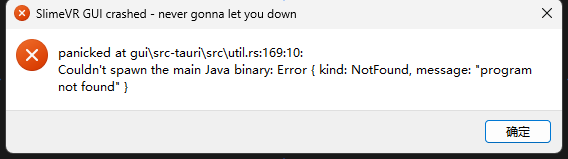
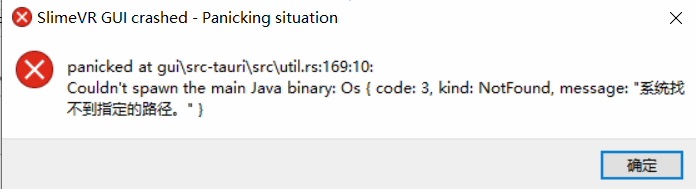
- You may need to install JDK17 or JRE17, available download links:
- https://aka.ms/download-jdk/microsoft-jdk-17.0.15-windows-x64.msi
- https://mirrors.tuna.tsinghua.edu.cn/Adoptium/17/jre/x64/windows - select the
.msifile to download and install.
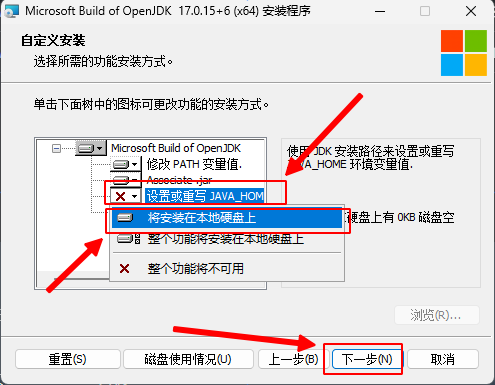
- If still not resolved after installation, when installing JDK17 or JRE17, set this option (note that installation interfaces for JDK17 or JRE17 compiled by different manufacturers may be slightly different)
¶ After opening software there is tray icon / no main interface / software seems not to start
- You may need to install WebView2: https://developer.microsoft.com/en-us/microsoft-edge/webview2/
- Generally recommended to download:
Evergreen Bootstrapper, unless you are sure of your computer architecture
¶ SteamVR did not recognize Slime tracker
- Please make sure you have started the SlimeVR application normally.
- If you are using: Mini Series products, this series does not support WiFi networking and WiFi communication. Please insert the dedicated receiver to connect the device.
- Please make sure you correctly installed SlimeVR OpenVR Driver according to our installation tutorial, do not use third-party tutorials.
- Please check if SlimeVR OpenVR Driver addon is enabled, see: SlimeVR Manual Installation Guide -> Install SlimeVR OpenVR Driver -> Step 6
¶ Stuck on Sending Wi-Fi Credentials during networking, progress bar not moving
- Mini Series products use dedicated receiver, do not need to configure WiFi. Please insert the receiver correctly and skip the WiFi connection step
¶ Receiver not recognized after inserting / no response after inserting device
- Please wait patiently for the first recognition after device insertion, this may take
1~3 minutes - Please check if your USB port is working normally. For other special situations, please contact us.
- If you updated firmware, please confirm whether your tracker firmware version and receiver firmware version are consistent.
- Please check whether
trackerandreceiverhave been paired. Incorrect use of function button may clear pairing, requiring re-pairing. - Please check if you accidentally entered pairing mode. If in pairing mode, please refer to Pairing Receiver to re-pair the tracker.
- Your computer may have been running too long, or multiple SlimeVR applications may be starting simultaneously causing conflicts. Try
restarting the computer(please do not use shutdown + startup to replace restart, please use restart). - Your device may be out of battery, try charging for more than half an hour.